Getting started
You connect your GoHighLevel sub-account here once. We give you a private link. You paste that link into Claude, or connect ChatGPT through OAuth. Now it can work inside that sub-account — create contacts, move deals, send messages, build invoices, pull reports — with the full toolset. No code, no software to install.
One link per sub-account. Each link only works for the sub-account you connected it to, so a link for Client A can never touch Client B's data.
Step 1 — Create your Private Integration token (3 minutes)
Do this inside the sub-account you want to connect.
- Go to Settings → Private Integrations
- Click Create New Integration
- Name it anything (e.g. "Claude MCP")
- Tick the scopes — this decides what Claude or ChatGPT will be allowed to do. Easiest approach: tick everything you're comfortable with. Missing a scope isn't dangerous; the tool that needs it will just return an error naming the missing scope, and you can add it later.
- Click Create, then copy the token (it starts with
pit-). You only get to see it once — copy it now.
Recommended scope set
contacts (read + write) · conversations +
conversations/message (read + write) · opportunities
(read + write) · calendars + calendars/events
(read + write) · workflows (read) · campaigns
(read) · forms (read) · surveys (read) ·
funnels (funnel/page/redirect) · links (read + write)
· locations/customFields, locations/customValues,
locations/tags, locations/tasks (read + write) ·
medias (read + write) · products +
products/prices + products/collection (read + write) ·
payments/orders, payments/transactions,
payments/subscriptions, payments/coupons ·
invoices + invoices/schedule + invoices/template +
invoices/estimate (read + write) · objects +
associations (read + write) · users (read + write) ·
businesses (read + write) · store (read + write) ·
emails (read + write) · courses (write)
Step 2 — Get your Location ID (30 seconds)
- In the same sub-account, open Settings (left sidebar, near the bottom)
- Click Business Profile — it is the first item under Settings
- Look at the top right of the General Information panel. The Location ID sits there on its own, with a copy button next to it.
It is a 20-character jumble of letters and numbers, something like
ve9EPM428h8vShlRW1KT. Not your business name, and not your email.
If you would rather not go hunting: it is also sitting in your browser's address bar
right now, between /location/ and the next slash —
app.gohighlevel.com/v2/location/ve9EPM428h8vShlRW1KT/dashboard
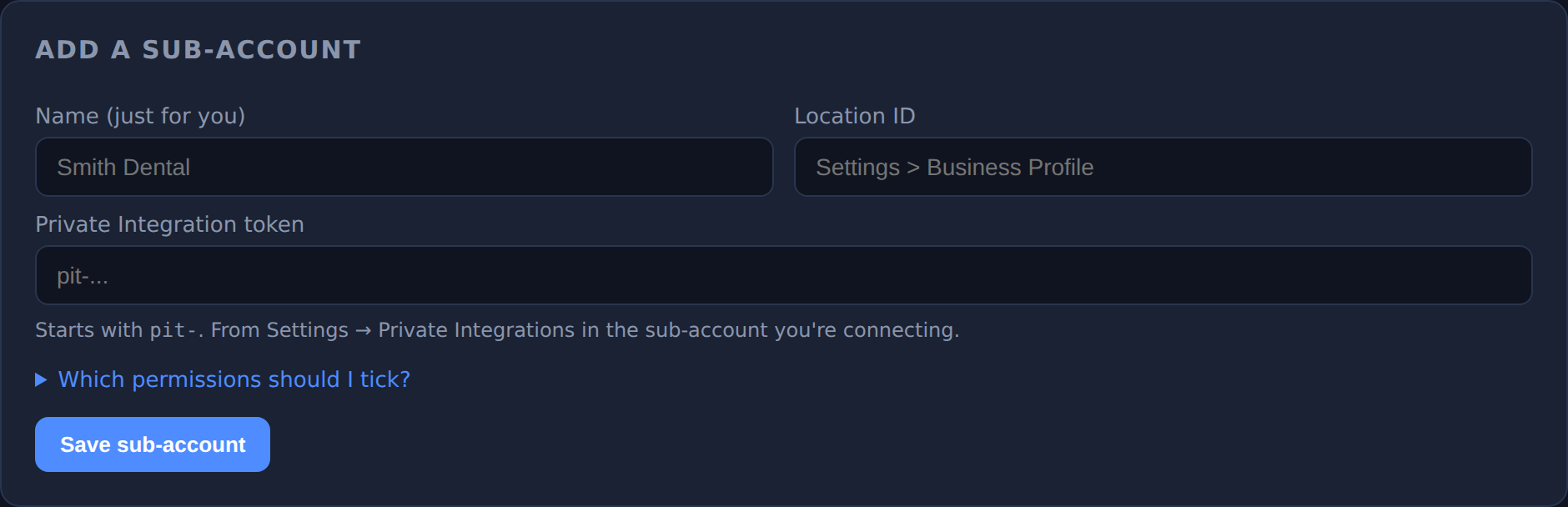
Step 3 — Add the sub-account here (1 minute)
- Log in to your dashboard
- Click Add sub-account
- Fill in: a name (just for you — e.g. "Smith Dental"), the
Location ID, and the
pit-token - Click Save, then click Test
- Click Activate — $8/mo and approve the subscription with PayPal
A green live pill means it works. If you see an error, it will tell you exactly what's wrong (usually a missing scope — go back to Step 1 and tick it).
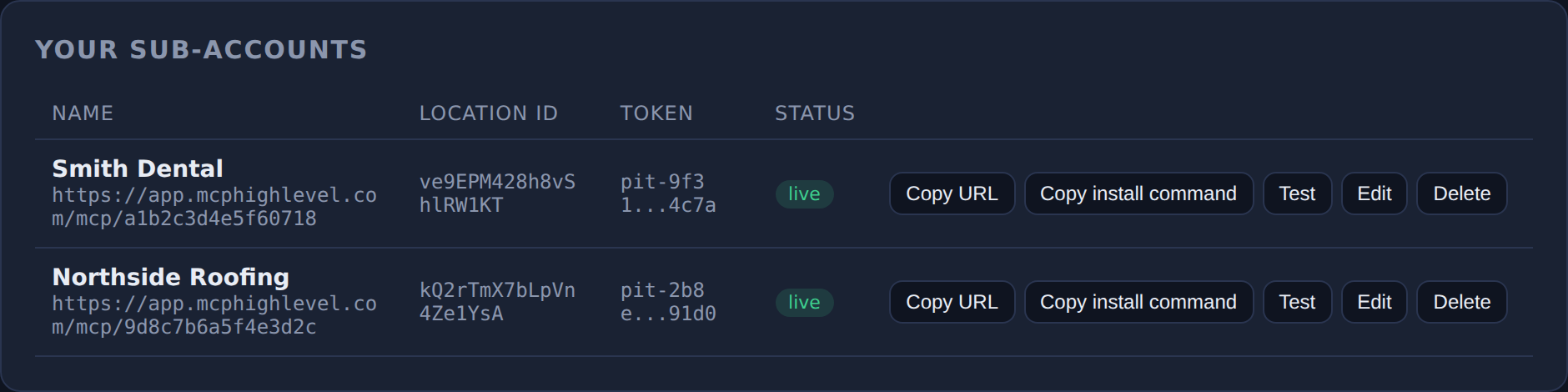
pit-9f31…4c7a; it is never displayed in full again.Starter is $8/month for every sub-account, including your first, with all tools included. PayPal asks you to approve the subscription amount when you activate a sub-account. The sub-account goes live after PayPal confirms payment; saving or testing the connection does not activate it. Agency is $99/month for unlimited sub-accounts.
Step 4 — Connect it to Claude or ChatGPT (1 minute)
Click Copy install command or Copy URL on your sub-account row, then:
For Claude Code (desktop or terminal)
Paste the copied command into a terminal:
claude mcp add -s user --transport http smith-dental "https://app.mcphighlevel.com/mcp/smith-dental-a1b2c3d4e5f60718"
Then start a new Claude session. (Tools only load in sessions started after you add a connector.)
For claude.ai (web or mobile) or Cowork
Settings → Connectors → Add custom connector → paste the copied URL. No token, no headers — the link is the credential.
For ChatGPT private-link connections
You can keep using your private MCP URL. To sign in and manage each ChatGPT connection separately, use the OAuth setup below.
- Open Plugins, select the plus button, then Create custom MCP server
- Paste your copied private URL as the Server URL and choose No authentication
- Review the warning, create the plugin, and install it. No token, no headers — the link is the credential, exactly as with Claude.
The full toolset loads for every activated sub-account.
Custom plugin availability depends on your ChatGPT workspace's permissions and restrictions. Check OpenAI's current setup guide if the option is unavailable.
Connect ChatGPT with OAuth
First save, test and activate your sub-account using Steps 1–3. Use a Private Integration token created inside that sub-account's Settings. Keep it in our dashboard; never enter your GoHighLevel token in ChatGPT.
- In ChatGPT, open Plugins, select the plus button, then Create custom MCP server.
- Name it MCP for HighLevel and enter this Server URL:
https://app.mcphighlevel.com/chatgpt/mcp
- Choose OAuth authentication. Review ChatGPT's warning, select Create as a plugin, and install it from your personal plugins.
- When prompted to connect, sign in to MCP for HighLevel. Choose one of your active paid or complimentary sub-accounts, review the permissions, and approve.
- Start a new ChatGPT Work chat, type @, and select the plugin.
Read access retrieves sub-account data. Write access permits changes, messages and workflows. Review the permissions shown before approving. Connecting an already active sub-account to ChatGPT does not add another billed sub-account.
For different sub-accounts, add separate connections. Use the plugin's settings to add an account or reconnect, then choose the sub-account during approval. Each connection stays tied to that one sub-account. Tell ChatGPT which connection to use.
To stop a connection's access, open the ChatGPT section of your dashboard and select Revoke connection. This does not disable the GoHighLevel sub-account or change billing. Your existing Claude and private MCP links keep working.
This is private custom plugin setup. A public directory listing requires OpenAI review. ChatGPT workspace permissions apply. See OpenAI's setup guide and multiple-account guidance.
Step 5 — Try it
Start a new chat and ask:
- "Using smith-dental, list my workflows."
- "Using smith-dental, show me open opportunities over $1,000."
- "Using smith-dental, create a contact named Jane Doe with email [email protected] and tag her 'website-lead'."
Frequently asked questions
Do I need to know how to code?
No. You copy two values from GoHighLevel, then paste a private link into your AI client or approve a ChatGPT OAuth connection.
Is my token safe?
Your token is encrypted before it is stored, and it is never shown again — not even
to you (you'll only see something like pit-f855...4182). It never leaves our
server: AI clients use your private link or separate OAuth credentials, never your GoHighLevel token.
Treat your private link like a password
Anyone who has it can use that sub-account's tools. If it ever leaks, delete the sub-account here and re-add it — that instantly kills the old link and gives you a new one.
Can one link touch my other clients' sub-accounts?
No. Every link is locked to the one sub-account you connected it to. The tools don't even accept a location as an input.
Can Claude or ChatGPT delete my contacts?
No. We deliberately do not include destructive tools like delete-contact. Claude or ChatGPT can create, update, tag, and message — not wipe your database.
GoHighLevel has its own free MCP — why use this?
Theirs is great for one sub-account at a time and we'd genuinely recommend it if that's all you need. Ours is built for people running many sub-accounts: one dashboard, one click per client, direct single-call tools (faster and cheaper for automations), and safety guardrails for anything running unattended.
What does it cost?
Starter includes all tools for $8/month per sub-account, including your first and every additional one, or $99/month for unlimited on the Agency plan. No contract, cancel anytime.
What happens if I cancel?
Your links stop working. Your data stays with GoHighLevel — we never store your contacts, only the connection details.
Which AI apps work?
Claude Code, claude.ai (web/mobile), Cowork, and ChatGPT where custom MCP plugins are allowed. Under the hood this is a standard MCP server over Streamable HTTP, so any MCP client that supports that transport will work — Cursor, VS Code and the rest included.
Still stuck?
Open a support ticket from your dashboard — a human answers, within 24 hours, and you track the whole conversation in your account.